
Asset Conversion
Most game engines, Source included, don't handle common file formats like .png or .fbx directly during runtime. Instead, a custom file format specific to the engine is used. These custom files are then able to hold extra data or use different kinds of data storage and compression formats that are more optimal for use in realtime graphics.
History: Traditional Asset Creation
Source uses .vtf files for textures and a collection of .mdl, .phy, .vtx and .vdd files for models. To create these files, the Source Engine includes command-line converter programs like vtex and studiomdl, which can be used to convert a .png into a .vtf, for example. However, these command-line tools only concern themselves with single assets. Creating assets with these tools by hand is cumbersome and artist unfriendly. Community tools like VTFEdit give these tools a graphical user interface, but they usually still concern themselves with one asset at a time. Dealing with hundreds or thousands of assets and iterating on assets is not feasible with these traditional methods.
Unified Asset Conversion
TIP
In Mod Companion, "Asset" is used to describe a single texture, model, or material
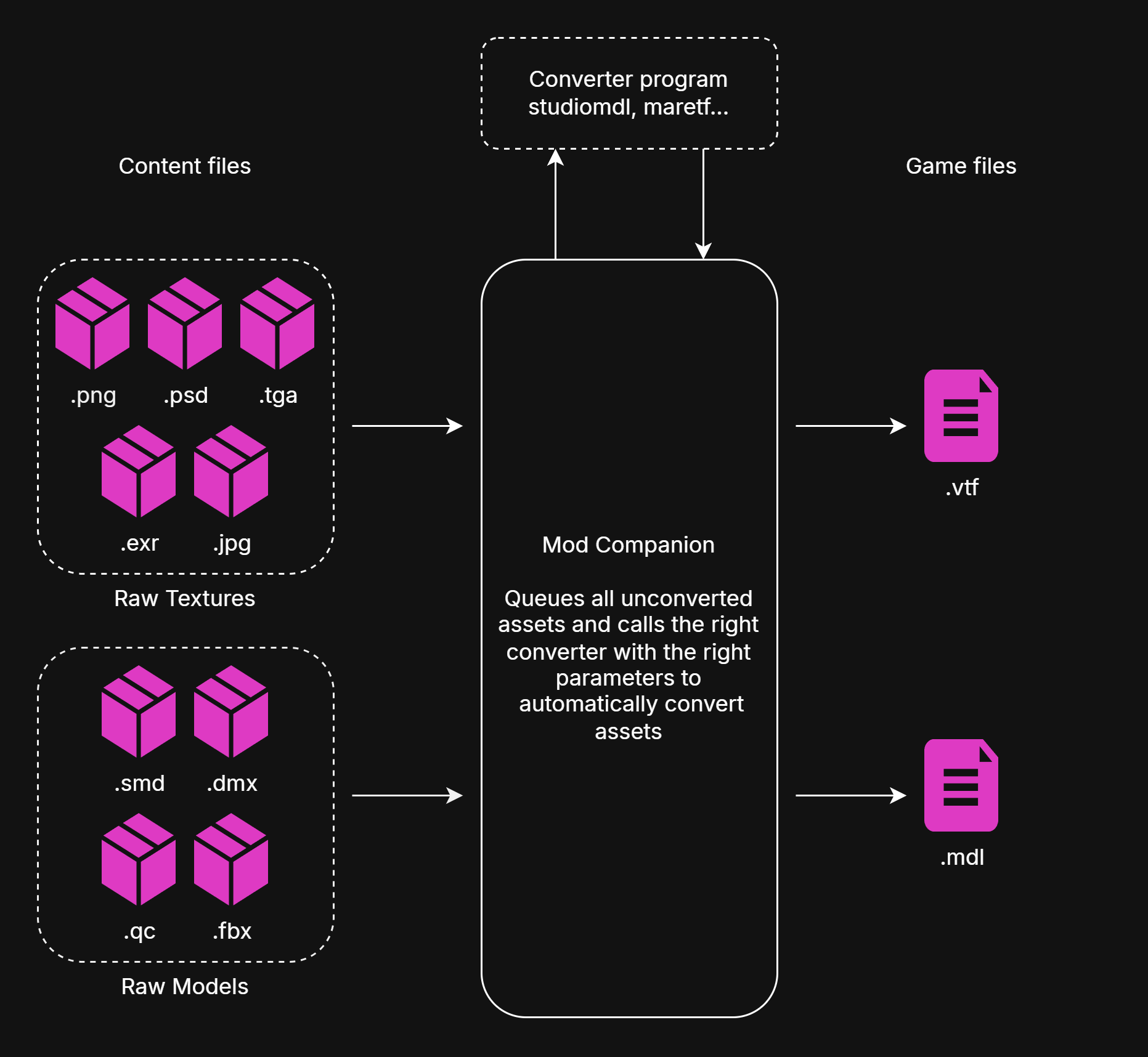
Mod Companion acts as an orchestration tool, calling converter programs automatically whenever an asset needs to be converted. Instead of interfacing directly with studiomdl or vtex, you can register the asset in Mod Companion and have it be handled automatically
Valve uses a folder called "content" to represent the raw, unconverted assets and "game" for the game-ready assets, so Mod Companion uses the same terminology.
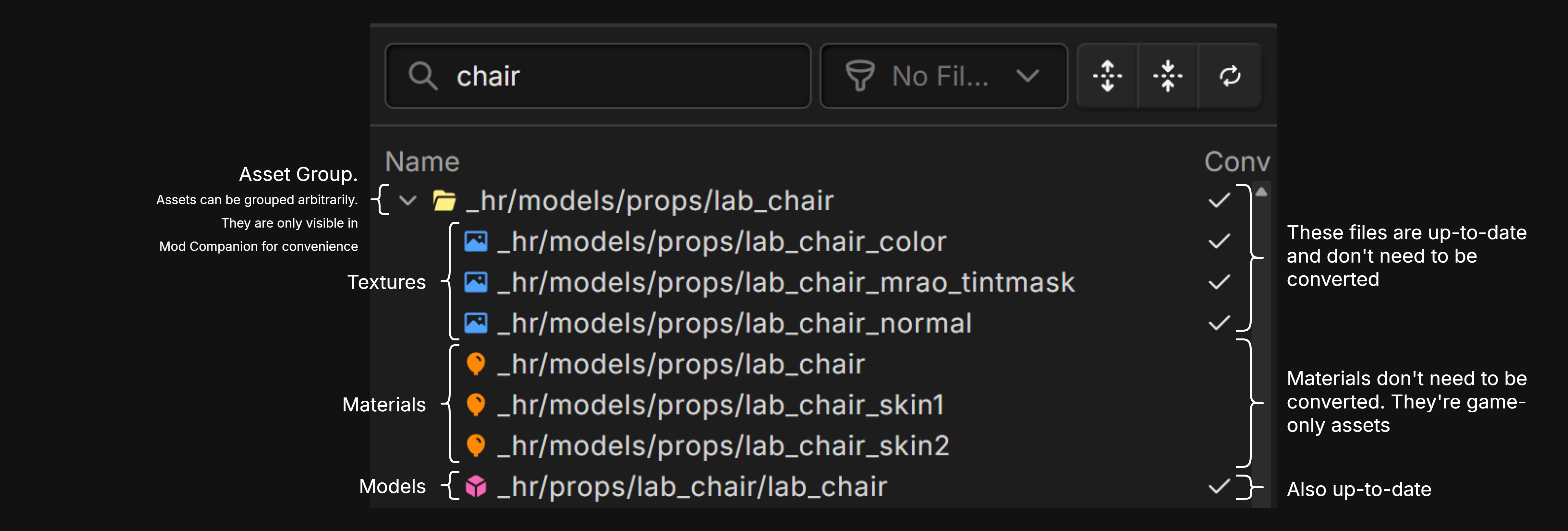
Here's an example of how assets are shown in the Asset Browser. Different kinds of assets are shown in the same list and can be grouped together. The UI shows all asset's conversion status at a quick glance, and all assets can be converted the same way.
Some assets, like materials, require no conversion step, since they only exist as game assets.
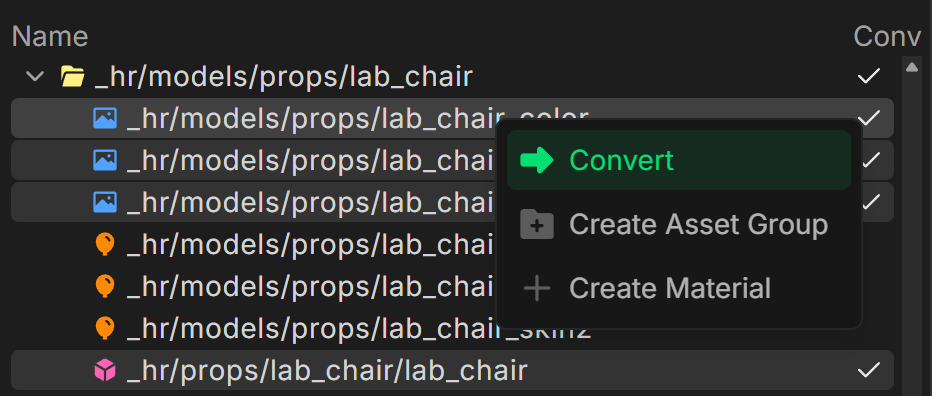
All types of assets can be marked for conversion from the context menu.
Conversion Agent
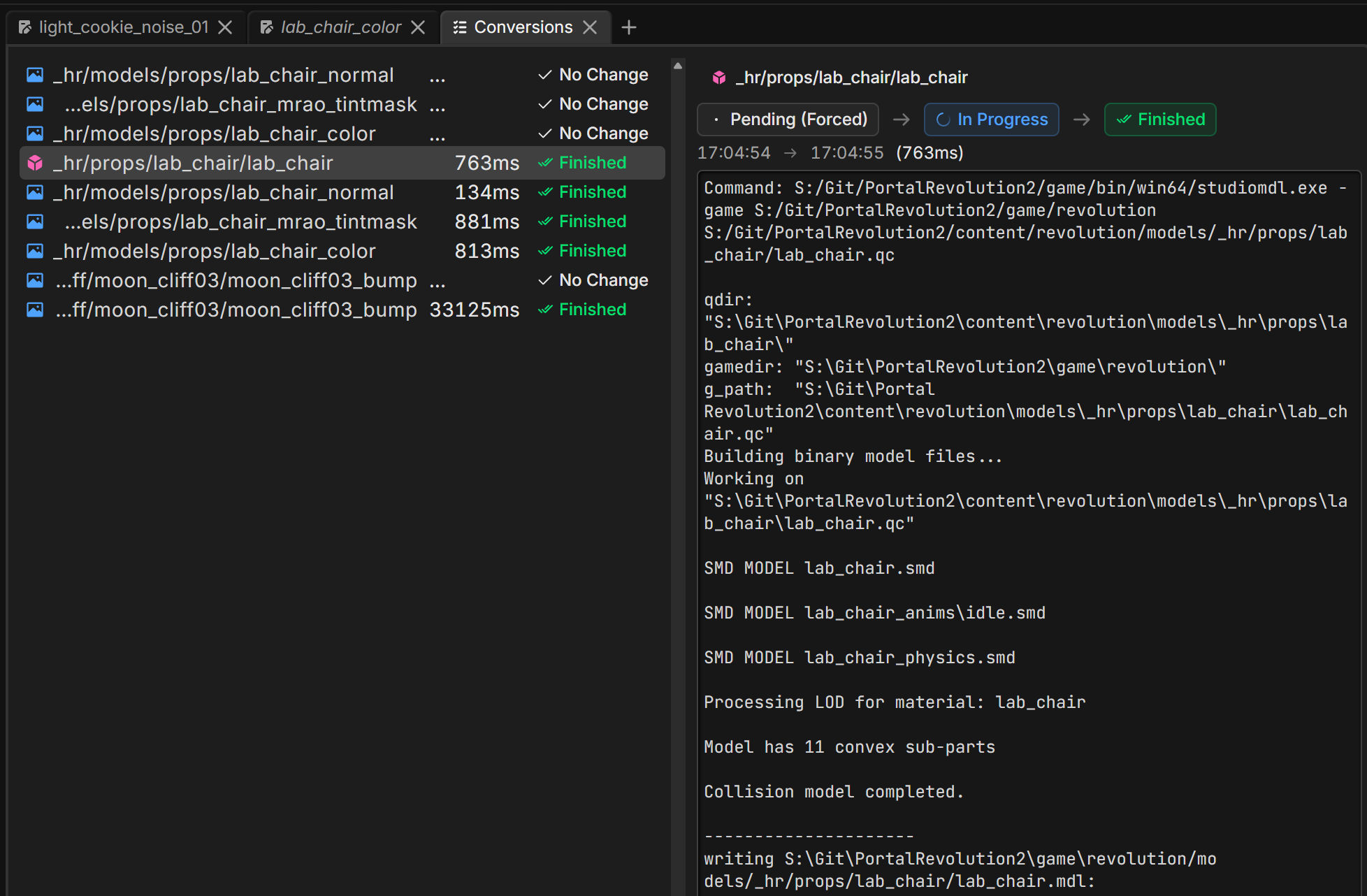
The system responsible for converting assets is called the Conversion Agent. This process runs in the background and waits for jobs to be added to the conversion queue.
When a job is at the front of the conversion queue, Mod Companion processes the conversion and continues to the next job when finished. The queue and finished jobs can be seen in the Conversions Panel.
Asset Conversion States
Assets can be in the following conversion states:
| State | Description |
|---|---|
| Unknown | The asset's state is unknown and needs to be investigated |
| Invalid | The asset's setup is invalid (eg: No content files listed in MCA) |
| Pending | The asset is waiting to be converted. Will only be converted when the asset is found to be stale |
| Pending (Forced) | The asset is waiting to be converted. No stale check will be performed |
| InProgress | The asset is currently being converted |
| Failed | The conversion finished but the converter returned an error |
| NoChange | The asset does not need to be converted because it's not stale |
| NotConvertible | The asset's type requires no conversion (Like a material) |
- On startup, stale checks are immediately performed on all assets. Stale assets are moved to
Pending - When a content file changes on disk, its accompanying asset is moved to
Pending - When a Convert button is pressed in the UI, the asset is moved to
Pending (Forced) - Newly created assets are set as
Unknownuntil they're manually converted from the UI or until the app is restarted (This is to prevent the Conversion Agent from converting assets that aren't properly configured yet)
Stale Asset Check
To know whether an asset is up-to-date or in need of conversion, a stale-check is performed.
An asset is deemed stale if any of the asset's game or content files do not match each other.
For example: grass.png was created on October 9th and grass.vtf was created on October 5th. The asset is stale and needs to be reconverted.
TIP
After conversion, the Conversion Agent sets all game and content files' creation date to the same 'now' time!
Version Control
One of the central goals of the Conversion Agent is to treat game assets as 'derived cache' files that should not be submitted to version control.
TIP
For Portal: Revolution 2, we mark a specific folder for Mod Companion assets, which is added to .gitignore and continue to include original Portal 2 texture and model files in the repository.
(All Mod Companion assets are prefixed with _hr for High Resolution)
Converters
Mod Companion uses the game's studiomdl executable to convert models, and ships maretf to create textures.